AI Photos Feed
Latest Photos ( View All Photos )
My TV & AI Photos
Roku TV
AI Photos Feed Screensaver
USB Screensaver
Fire TV
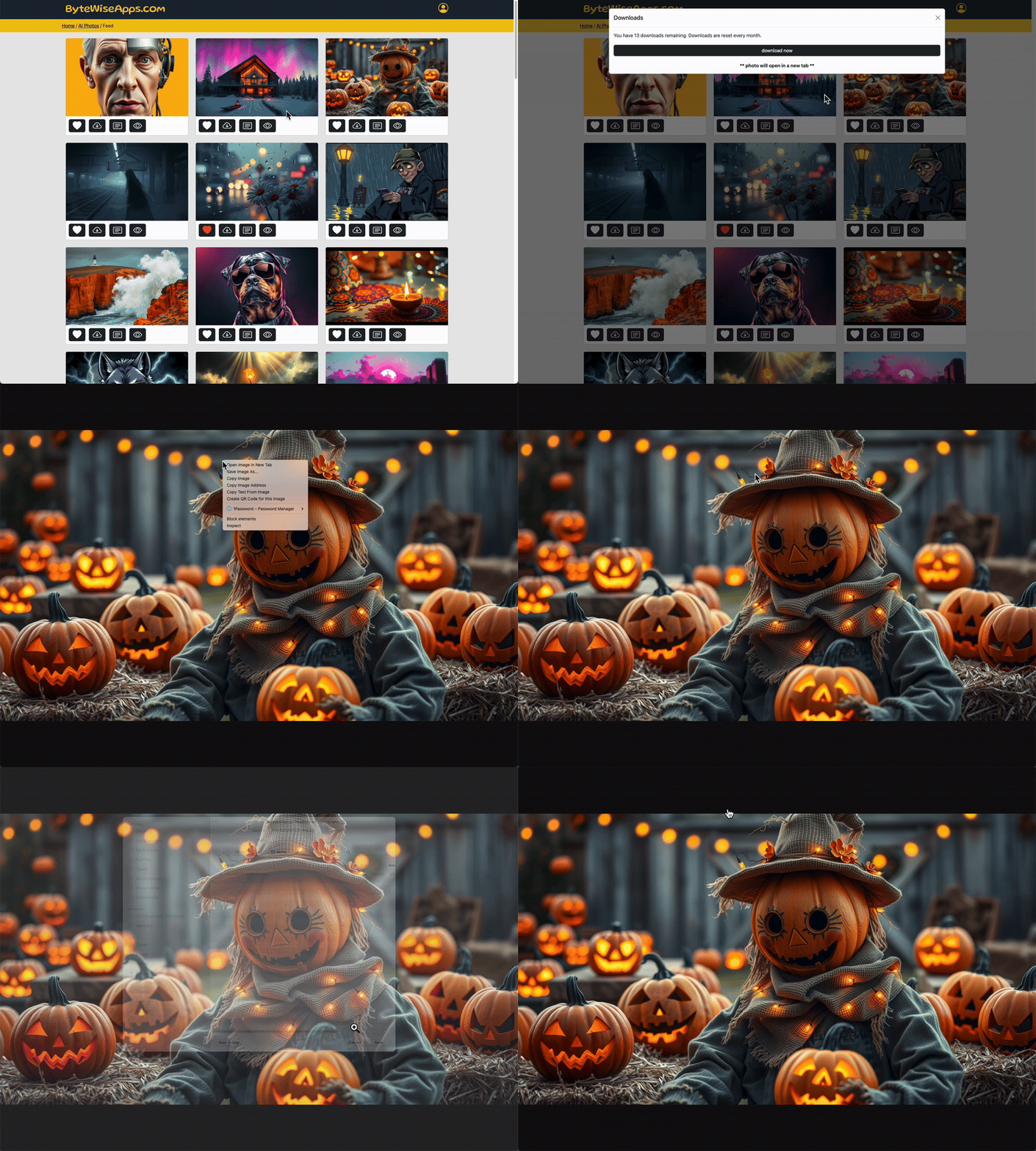
Learn how to download photos
Step 1: Upload Photos to Amazon Photos
You can do this via the mobile app or web browser. All photos will sync across your Amazon devices.
Option A: Using the Amazon Photos Mobile App (iOS/Android)
- Download and install the Amazon Photos app from the App Store or Google Play Store.
- Open the app and sign in with your Amazon account.
- Grant the app permission to access your device's photos.
- Tap the Albums tab at the bottom.
- Find or create the Fire TV Screensaver album (it's pre-made for this purpose). If you want custom albums, tap the + icon to create one.
- Select photos from your library, tap Add, and add them to the album.
- Remove unwanted photos by selecting them and tapping the trash icon.
Option B: Using a Web Browser
- Go to photos.amazon.com in your browser.
- Sign in with your Amazon account.
- Click Upload or Albums to create/manage albums (e.g., "Fire TV Screensaver").
- Drag and drop photos or click Upload Photos to add them.
Your photos will automatically sync to the cloud within a few minutes.
Step 2: Set Up the Screensaver on Your Fire TV
- On your Fire TV home screen, use your remote to navigate to Settings (gear icon in the top menu).
- Select Display & Sounds.
- Scroll down and select Screensaver.
- Choose Current Screensaver (it might show a default like "Art Gallery" or "Aurora").
- Select your uploaded album from the list (e.g., "Fire TV Screensaver" or your custom one). If it doesn't appear, wait a bit for sync or refresh by restarting your Fire TV.
Step 3: Customize the Screensaver Settings
Back in the Screensaver menu:
- Set the Start Time (e.g., 5 or 10 minutes of inactivity before it activates).
- Choose a Slide Style (e.g., "Pan & Zoom" for a dynamic effect or "Dissolve" for subtle transitions).
- Adjust the Slide Speed (slow, medium, or fast).
- Toggle options like Show Time or Show Photo Info (turn off for a cleaner look).
Your Fire TV will now display your photos as a screensaver when idle, cycling through the album automatically.
Tips and Troubleshooting
- Sync Issues? Ensure your Fire TV and upload device use the same Amazon account. Restart the Fire TV (Settings > My Fire TV > Restart) or check your internet connection.
- Photo Quality: Our photos are high-resolution images for sharp display.
- More Albums: You can switch between multiple albums anytime in the Screensaver settings.
- Privacy: Photos are stored securely in Amazon Photos; only you can access them on your devices.
Samsung TV
Learn how to download photos
Method 1: View Photos from a USB Drive
This is a simple, wired option for offline photos. Supported image formats include JPEG, PNG, BMP, and more.
Prerequisites
- Format your USB drive in FAT, exFAT, or NTFS (for QLED/SUHD TVs) or FAT16/FAT32/NTFS (for Full HD TVs).
- Back up files before connecting to avoid data loss.
- Connect directly to the TV's USB port (hubs not supported).
Steps
- Plug the USB storage device (e.g., flash drive or external hard drive) into a USB port on the back of your TV or the One Connect Box.
- Press the Source button on your remote, then select USB Device or Connected Device. (Alternatively, press Home, go to Source, and choose USB.)
- Navigate to the folder containing your photos and select a photo file.
- Press Enter to open it. Use the remote's directional arrows to zoom, rotate, or slideshow through photos.
- To exit, press Return to go back to the file list or Home to return to the main menu.
Tips
- Up to 1,000 files per folder are supported on QLED/SUHD models; avoid exceeding 8,000 total files/folders.
- If the USB isn't recognized, try reformatting on a PC or use the TV's [5V, 1A] USB port for high-power devices.
Method 2: Use the Built-in Gallery App (from Samsung Account)
Sync and view photos stored in your Samsung Cloud or shared from a Galaxy phone. This works best for Samsung ecosystem users.
Prerequisites
- Sign in to a Samsung account on your TV (2019 or newer models).
- Upload photos to your Samsung account via the Gallery app on your Galaxy phone.
Steps
- Press the Home button on your remote and navigate to Apps.
- Select the Gallery app. If it's your first time, enter a PIN as prompted.
- Sign in to your Samsung account if not already logged in—this syncs your photos, videos, and albums.
- Use the menu (three horizontal lines) in the top-left to browse by Albums, Daily, or Monthly views.
- Select a photo to view full-screen. Use slideshow mode for automatic playback.
Tips
- Restrict access with a PIN via Gallery Settings (gear icon) to hide content.
- Share photos easily with family via Group Sharing from your phone's Gallery app.
Google TV
Learn how to download photos
Prerequisites
- Ensure your photos are uploaded to Google Photos and organized into albums if desired.
- Sign in to the same Google account on your Google TV device.
- Update your Google TV to the latest software version for the best experience.
Steps
- Access Settings on Your Google TV: Using your remote, go to the home screen and select the profile icon or gear icon in the top right corner to open Settings.
- Navigate to Ambient Mode: Scroll down and select Device Preferences (or System), then find Screensaver or Ambient Mode.
- Select Google Photos: Choose Google Photos as your screensaver source. If it's not listed, ensure the Google Photos app is installed and updated via the Google Play Store.
- Link Your Device (If Needed): On your phone or computer, open the Google Photos app, tap your profile icon > Photos settings > Apps & devices > TVs & frames. Select your Google TV and approve the connection.
- Choose Photos or Albums: Back on your TV, select the specific photos, albums, or library you want to display. You can customize the theme, speed, and other options here.
- Preview and Save: Preview the slideshow, adjust settings like transition effects or duration, then save changes. Your TV will now show your photos when idle.
Tip:
For a more personalized setup, create a dedicated album in Google Photos just for your screensaver. Ambient Mode typically starts after 5-10 minutes of inactivity, but you can adjust this in the screensaver settings.
Troubleshooting
- Photos Not Showing? Double-check that your TV is linked in the Google Photos app settings and that the correct album is selected.
- No Google Photos Option? Install or update the Google Photos app from the Play Store.
- Still Issues? Restart your TV or check for software updates under Settings > System > About > System update.